Greendorph’s autonomous cleaning robots were controlled through an app built by the engineers who designed them. It made sense to its makers, but the city cleaners who actually run the robots couldn’t find the functions they needed, and the app’s structure followed no logic a newcomer could follow. As the only designer on a five-person team, I redesigned the app around the operator’s work, from recording a site map to running a cleaning job and recovering when something goes wrong.
By the end of my six-month internship, I had handed the complete app prototype, the Figma file and my workflow diagrams to the software engineer rebuilding the app for Greendorph’s customers. The dashboard and control panel I designed for the YJ80 were built before I left and are used on all of Greendorph’s newest robots.
Read moreRead less about project background
I started on site. Three visits in my first weeks, including a large train station in Shenzhen, showed how differently the engineers and the city cleaners used the robot. I then mapped the whole system, from recording a site map to verifying routes, and met with the engineers and field support to agree on the app’s structure and functions.
From there, I designed and prototyped the complete app in Figma, working closely with the software engineer, and reviewed other robot control apps with field support and marketing. Field support remained my link to operators throughout, regularly passing on how the app was used and where people got stuck.
Context
An interface for work on the ground
On three site visits in my first weeks, I saw the same gap each time. The engineers who built the robot operated it fluently, but the city cleaners it was sold to couldn’t. Even after a basic tutorial, workers couldn’t find the functions they needed. At a large train station in Shenzhen, recording a map took a long time, and workers couldn’t get the robot to run its routes.
Read moreRead less about An interface for work on the ground
Most operators are older city sanitation workers employed by the companies that buy Greendorph’s service. They need an app that is easy to navigate, uses plain words instead of technical terms, and doesn’t put too many actions on a single screen.
The original app worked against them in three ways. Functions were hard to find. The structure followed the machine rather than the work, grouping functions in a way only the engineers understood. And the app assumed prior knowledge, with nothing to explain what the robot could do or how to control it.
During testing, workers kept asking us where settings were and how to drive the robot manually to record a map. After those first visits I had few chances to return to the sites, so field support became my link to operators, regularly passing on how the app was used and where people got stuck.
Workflow
Understand the work before drawing the screens
Before changing any screens, I mapped how a site is set up, from recording a map on site to deploying routes and verifying them. The diagram showed every step the app has to support, and where the work passes between the operator’s app and the company’s remote team.
Read moreRead less about Understand the work before drawing the screens
I built this diagram in my first weeks, after learning how the robot is operated and how the whole system works. Setup runs through three phases. The site is mapped with the local app, virtual walls and tasks are deployed, and the result is tested. Deployment has two branches. Remotely, map data is pulled onto the platform and edited before being sent back. On site, the operator records precise routes and function points with the local app.
Seeing every map pass through the remote team before it is deployed later shaped how the redesign treats maps.
LOCAL APP
REMOTE ASSISTANCE
LOCAL APP
CHECKS
App structure
Choose once, then work in four places
Greendorph sells its robots to cleaning companies, which run cleaning services for their own clients. One cleaning company can manage many clients, each with their own robots, so the app has to start by choosing the client’s site and then the robot. My first structure asked for that choice separately on three routes. The redesign asks once, right after sign-in, then lets operators work from four tabs, Workbench, Maps, Task records and Device.
Read moreRead less about Choose once, then work in four places
This is a B2B2C product. Choosing a site and robot serves the cleaning company in the middle, while the rest of the app serves its workers and the sanitation workers in the field, so the app never controls just one robot. Throughout the redesign I met regularly with the engineers and field support. Field support brought client feedback, and the mechanical engineers brought technical requirements and constraints, which kept the structure within what the robot could actually do.
With older operators in mind, each screen keeps to a few actions and uses plain words instead of technical terms. Recovery states sit outside the four tabs and open only when needed, such as after a lost connection, an obstacle wait, a localization problem or an emergency stop.
Before · from Home
Before · from the navigation menu
Before & after
The redesign at a glance
The original app opened on two broad categories, task management and map management, and left operators to work out the rest. The redesign starts from the job itself, with the route, cleaning mode and next check together on one screen.
Read moreRead less about The redesign at a glance
The original home screen reflects how the engineers thought about the robot, with tasks in one place and maps in another. A new operator had to know in advance which category held the next step.
The refined task setup gathers everything needed to prepare one job, so the next decision is visible without searching.
Drag the arrow to compare
Refined task setup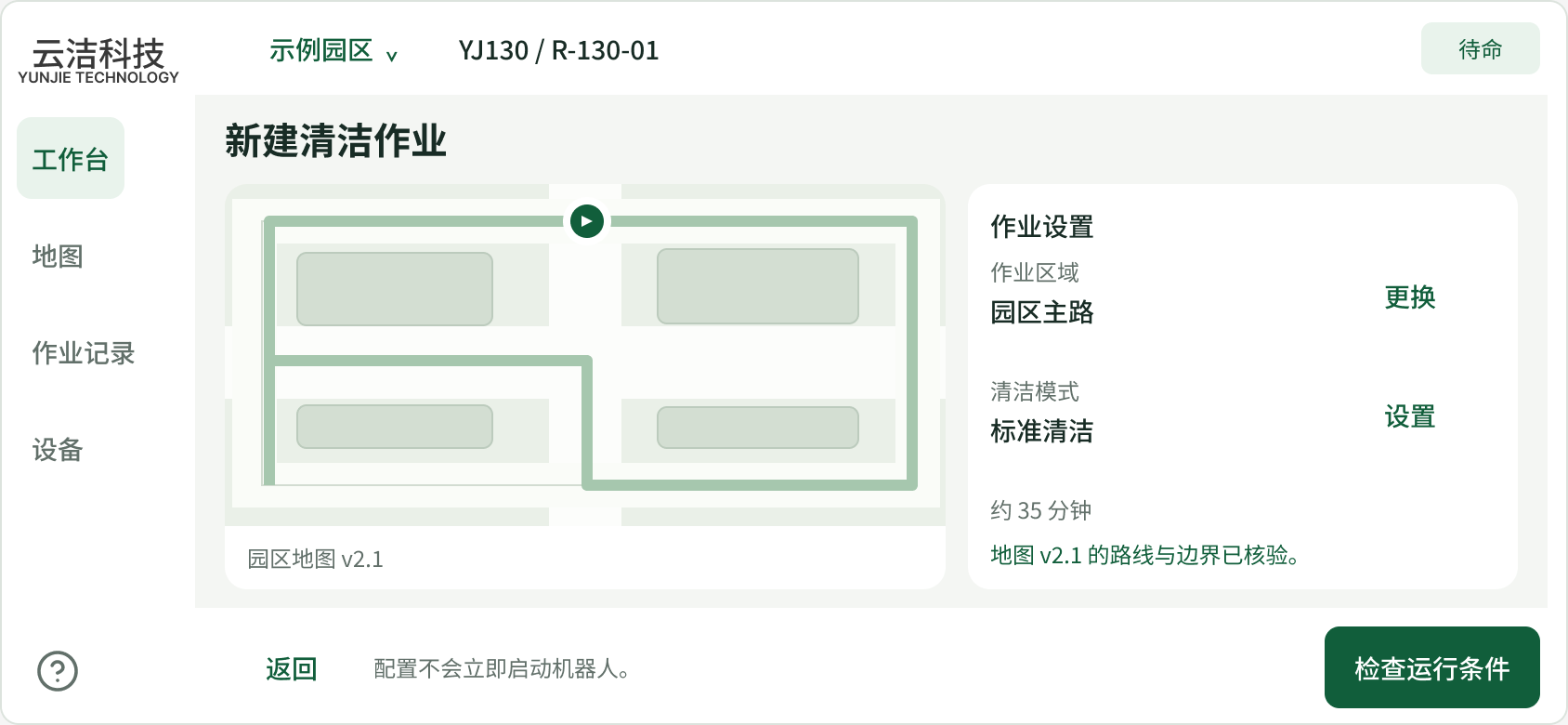
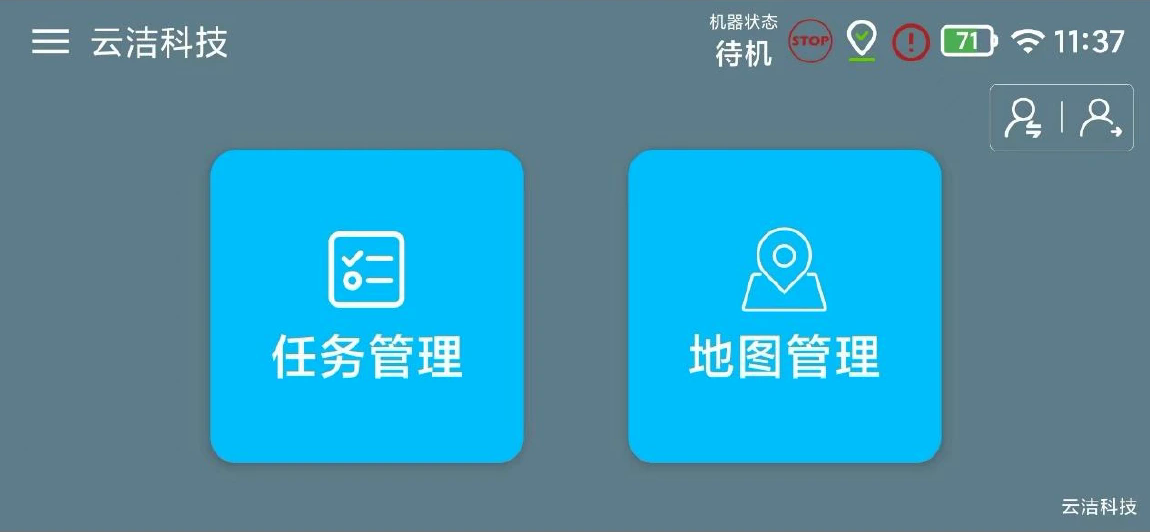
The home screen offers two broad management categories as the starting point.
Within the refined task flow, the route, cleaning mode and next check stay together.
Verified maps
Only verified maps can run tasks
On site, I saw robots fail to follow their saved maps. So in the redesign, saving a map doesn’t make it usable. A new map is saved as a draft and sent to the company’s remote team, who check that its routes run successfully and stay within the limits the robot must not cross. After it is tested on site, only a verified map opens for cleaning tasks.
Read moreRead less about Only verified maps can run tasks
This adds steps between recording a map and using it, at a point where workers want to get started. But a map that doesn’t match the site, or a route that crosses a pre-set limit, is exactly the failure workers were dealing with on site. A clear status on every map makes the wait understandable. A verified map goes straight to positioning, and an unverified one says it will open for tasks once it passes verification.
The same reasoning keeps operating parameters read-only for operators. The remote team sets and checks those limits, so field workers can see them but can’t change them.
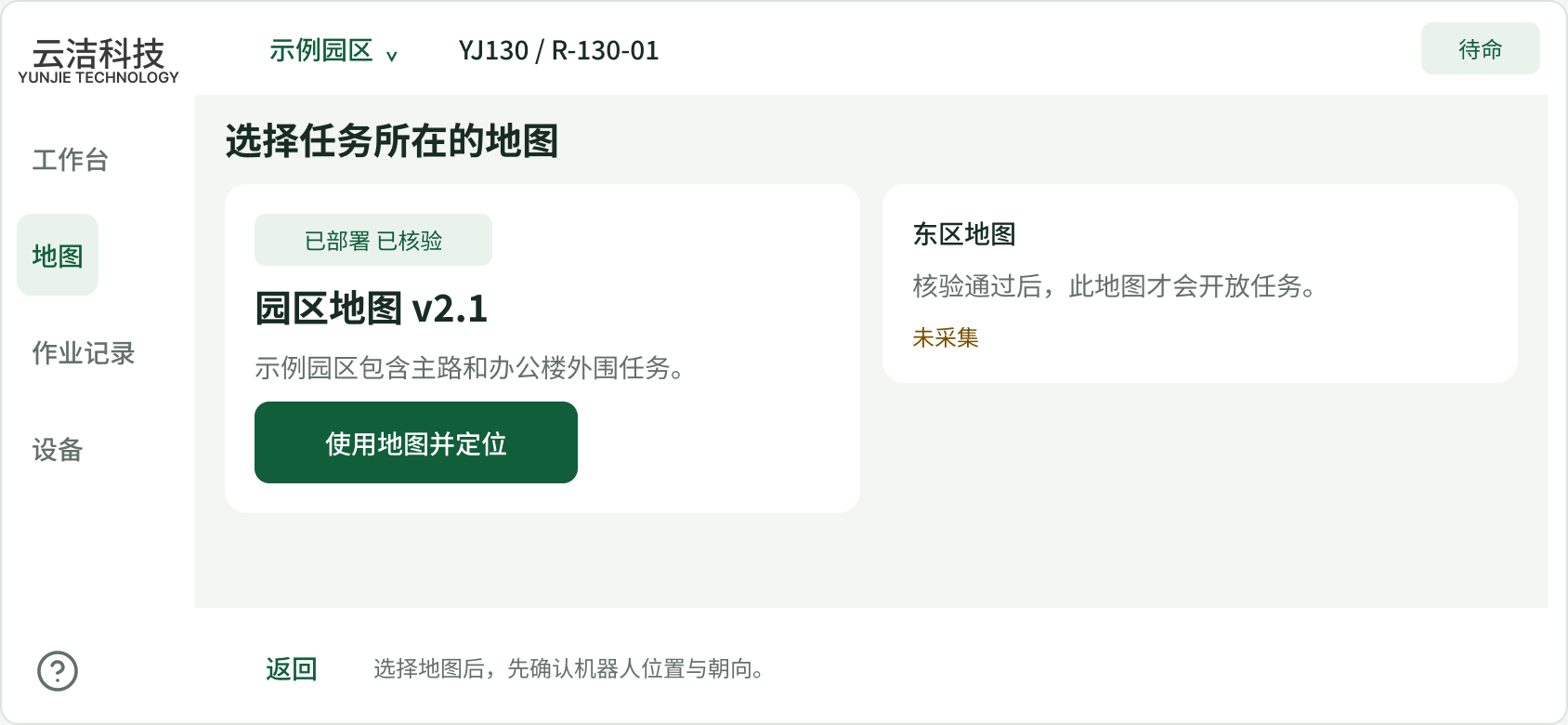
The verified park map can be used right away. The east-area map hasn’t been captured yet and will open for tasks only after it passes verification.
Confirmed commands
Every command waits for the robot
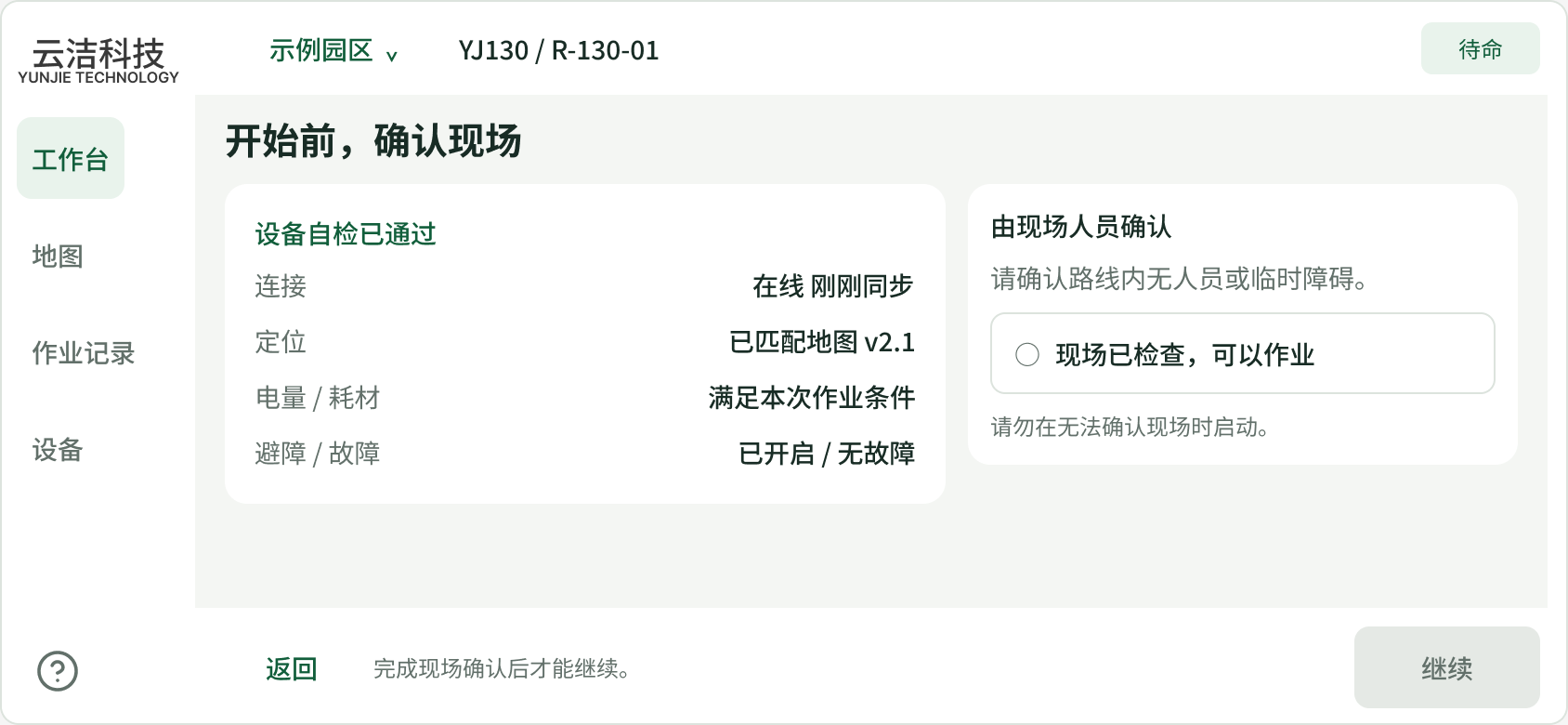
Robots sometimes shut down or drift mid-job, and workers have to pause them, reposition them and continue. A mistaken tap could start or end a job by accident, and every command first needs a check of the robot for physical problems. So each command takes two steps. The operator confirms it, and the app shows it as pending until the robot reports back.
Read moreRead less about Every command waits for the robot
A one-tap control would be faster, but these commands move a real machine in public spaces, so an accidental tap or an unnoticed fault matters. The confirmation step is where the operator checks the robot and the site, and the pending state stops the app from showing a job as running or paused before the robot has confirmed it.
Pausing keeps the job’s progress and never resumes on its own. Before resuming, the operator checks the site, connection and robot position, so the job continues from where things actually stand.
Walkthrough
See the flow in motion
These prototype walkthroughs show both decisions in motion. Positioning starts from a verified map, and starting, pausing and resuming a job each wait for the robot to confirm.
Read moreRead less about See the flow in motion
Positioning matches the map to the site before any task can start. Starting a job runs through the readiness checks, and pausing and resuming show each pending and confirmed state as it happens.
Choose a verified map
Physical interface
Carry the interface onto the machine
I also designed the dashboard and control panel for the YJ80, a semi-automated robot that sanitation workers sometimes drive by hand. It shares most of the YJ130’s functions but is run through physical controls, so I did more user research and gathered more feedback to make sure operators who don’t know the robot could read and use it. Both were built before I left and are now used on all of Greendorph’s newest robots.
Read moreRead less about Carry the interface onto the machine
The dashboard uses driving mode, speed and resource gauges to show the machine’s status. On the panel, cleaning functions share a consistent icon and on/off pattern, with power and emergency stop set apart.
Working on a physical machine changed how I thought about controls. Operators drive the YJ80 largely from muscle memory, so the panel has to stay consistent and predictable. The photograph of the panel in use shows its physical scale and how the screen and buttons sit within reach of the operator.
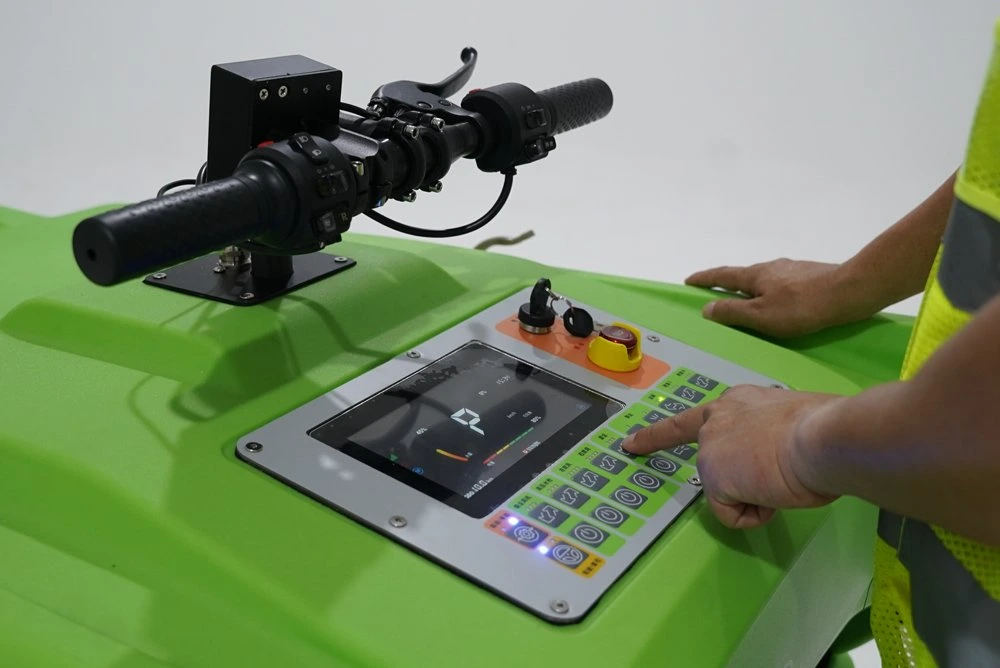
A close view of the physical panel shows how the display and function buttons sit within reach of the operator.
Reflection
What I learned
Designing for both robots showed me how differently people use a physical machine and a screen. The YJ80 was easier for sanitation workers to pick up. They already knew what each cleaning tool does, so all they had to learn was how to drive it and how to read the dashboard, and from there they could rely on muscle memory. The YJ130 is controlled through an app, for a machine they can’t operate by hand, and many of them aren’t familiar with mobile products. That is far harder, so the app has to explain what to do next and what each function does. The difference shaped both designs, a predictable panel for the YJ80 and an app that explains itself for the YJ130.